> ## Documentation Index
> Fetch the complete documentation index at: https://docs.airstore.ai/llms.txt
> Use this file to discover all available pages before exploring further.
# Quickstart
> Get Airstore running in 5 minutes
This guide covers connecting a service, creating a source view, and using it with Claude Code.
This guide is for **Airstore Cloud** (recommended for most users). For self-hosted deployments, see [Local Deployment](/deployment/local).
## 1. Sign up
Go to [app.airstore.ai](https://app.airstore.ai) and create an account.
## 2. Connect a service
In the dashboard, go to **Settings → Integrations** and connect a service:
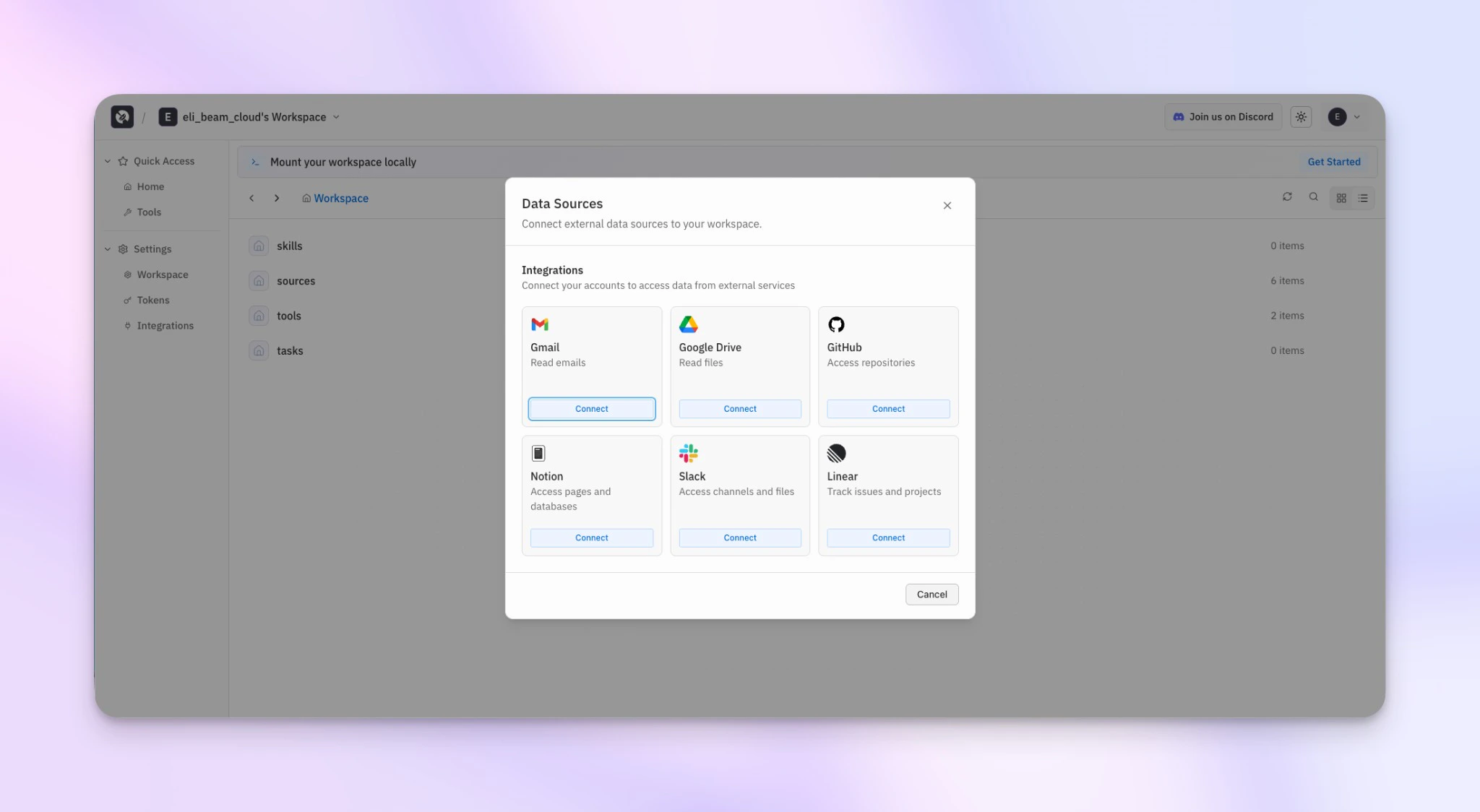 Available integrations:
* **GitHub** - Access PRs, issues, and code
* **Gmail** - Access emails
* **Google Drive** - Access documents and files
* **Linear** - Access issues and projects
* **Notion** - Access pages and databases
* **Slack** - Access messages
* **PostHog** - Access analytics events, feature flags, insights, and cohorts
Most integrations use OAuth—you'll authorize Airstore to access your data.
PostHog uses an API key instead ([setup guide](/guides/posthog)). Your source data is never stored in our system; we only cache query results for fast reads.
## 3. Create a source view
Click **New View** and describe what you want in natural language (smart mode):
Available integrations:
* **GitHub** - Access PRs, issues, and code
* **Gmail** - Access emails
* **Google Drive** - Access documents and files
* **Linear** - Access issues and projects
* **Notion** - Access pages and databases
* **Slack** - Access messages
* **PostHog** - Access analytics events, feature flags, insights, and cohorts
Most integrations use OAuth—you'll authorize Airstore to access your data.
PostHog uses an API key instead ([setup guide](/guides/posthog)). Your source data is never stored in our system; we only cache query results for fast reads.
## 3. Create a source view
Click **New View** and describe what you want in natural language (smart mode):
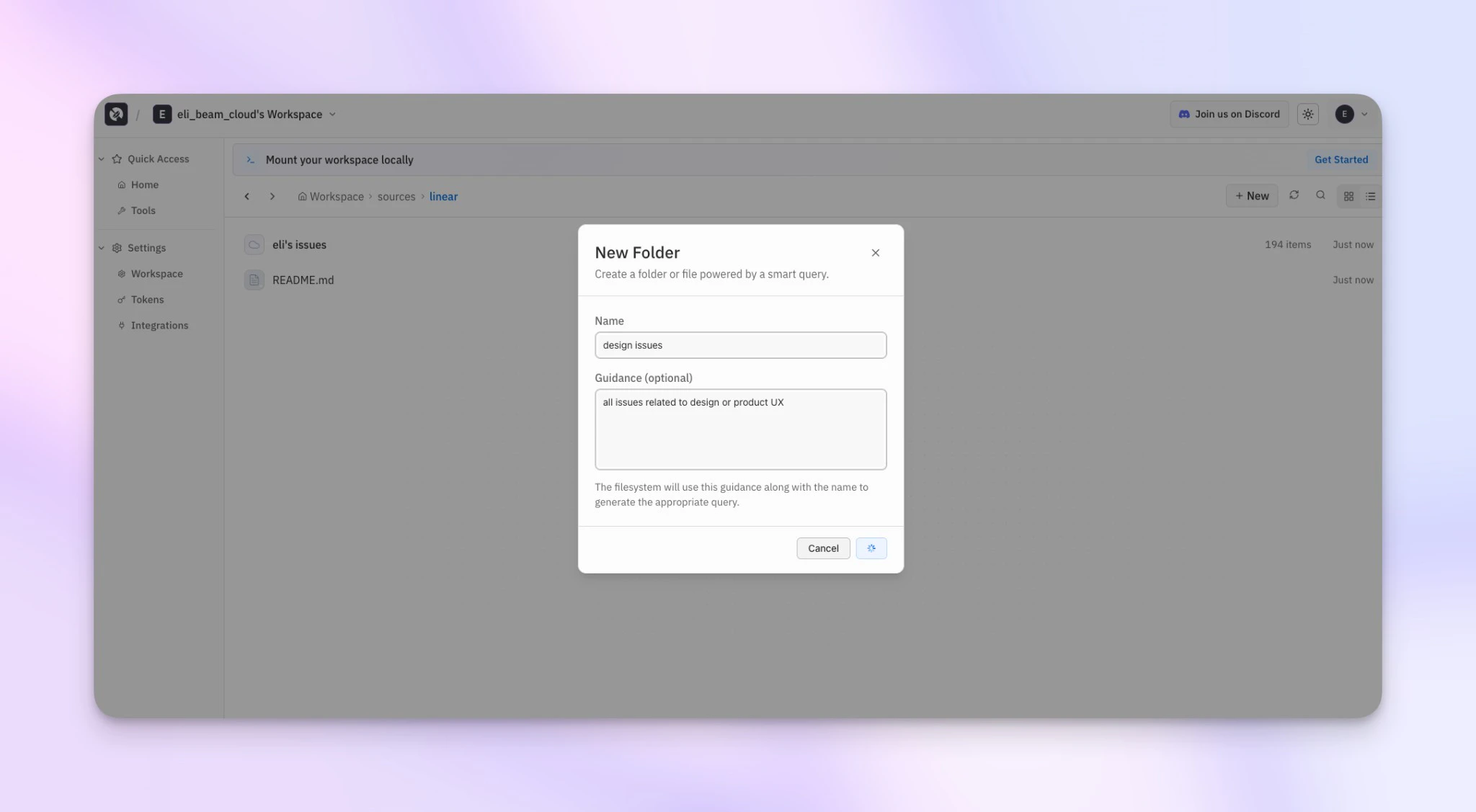 For example, name it "design issues" with guidance like "all issues related to design or frontend UX". View names are converted to URL-safe slugs (e.g., "design issues" becomes `design-issues`).
Other example queries:
* "Open PRs in acme/api that need review"
* "Invoices I received in email last week"
* "Contracts in Drive pending signature"
You can also switch to **query mode** for precise, structured filters — like filtering GitHub by repo, state, and content type. See [Source Views](/concepts/source-views) for details.
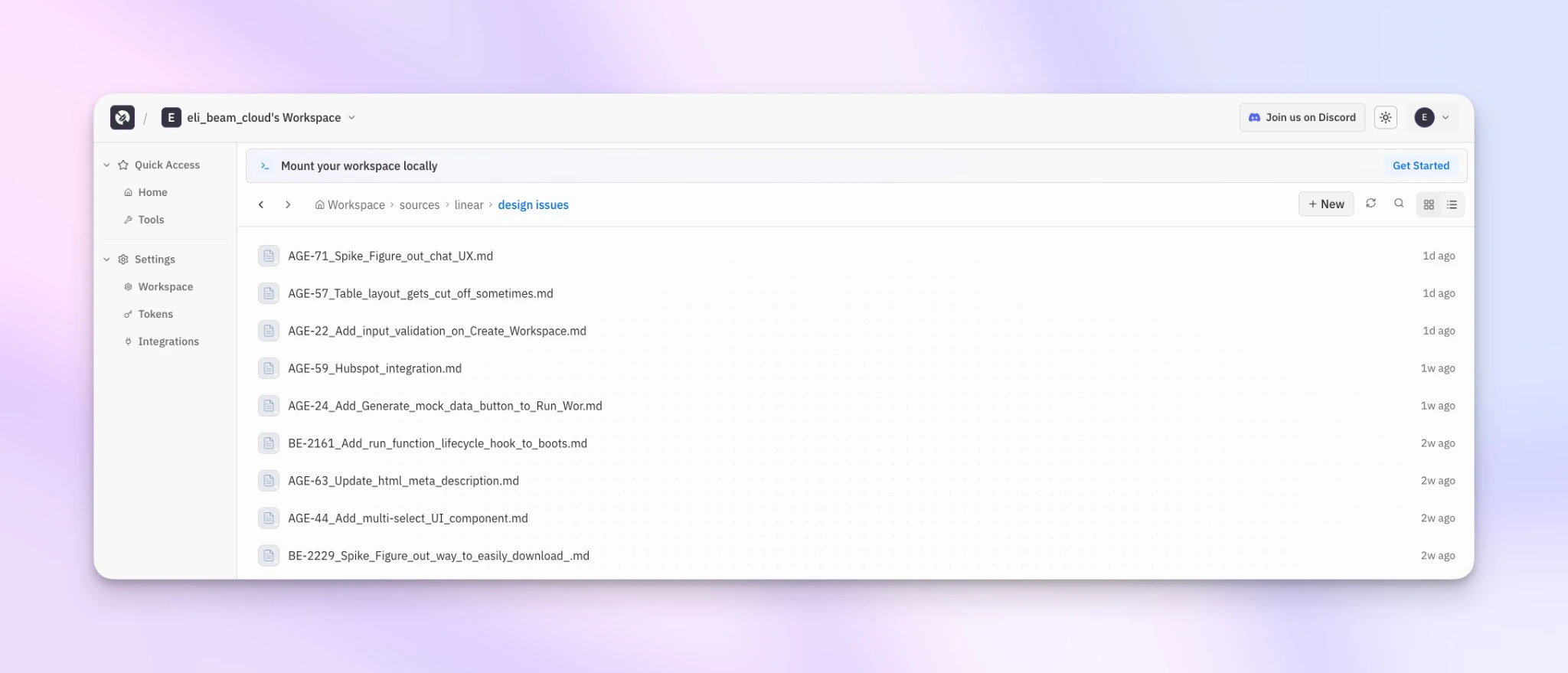
Airstore executes the query and creates a folder containing the matching files.
For example, name it "design issues" with guidance like "all issues related to design or frontend UX". View names are converted to URL-safe slugs (e.g., "design issues" becomes `design-issues`).
Other example queries:
* "Open PRs in acme/api that need review"
* "Invoices I received in email last week"
* "Contracts in Drive pending signature"
You can also switch to **query mode** for precise, structured filters — like filtering GitHub by repo, state, and content type. See [Source Views](/concepts/source-views) for details.
Airstore executes the query and creates a folder containing the matching files.
 ## 4. Install the CLI
```bash theme={null}
curl -sSL https://airstore.dev/install.sh | sh
```
You'll also need FUSE for filesystem mounting:
```bash theme={null}
# macOS
brew install fuse-t
# Ubuntu/Debian
sudo apt install fuse3
```
## 5. Authenticate
```bash theme={null}
airstore login
```
This opens your browser to authenticate. Once complete, you're ready to mount.
## 6. Mount the filesystem
```bash theme={null}
airstore mount ~/airstore
```
Your source views are now available as local directories. For example, if you connected Linear and created a "design issues" view:
```bash theme={null}
ls ~/airstore/linear/design-issues/
# AGE-71_Spike_Figure_out_chat_UX.md
# AGE-57_Table_layout_gets_cut_off_sometimes.md
# AGE-22_Add_input_validation_on_Create_Workspace.md
```
## 7. Use with Claude Code
```bash theme={null}
cd ~/airstore
claude
```
Claude can read your source view. Ask it to summarize or analyze the files you just mounted.
Press `Ctrl+C` in the terminal running the mount command to unmount when you're done.
## Invite your team
Workspaces can be shared with your team. Go to **Settings → Workspace** to invite members.
## 4. Install the CLI
```bash theme={null}
curl -sSL https://airstore.dev/install.sh | sh
```
You'll also need FUSE for filesystem mounting:
```bash theme={null}
# macOS
brew install fuse-t
# Ubuntu/Debian
sudo apt install fuse3
```
## 5. Authenticate
```bash theme={null}
airstore login
```
This opens your browser to authenticate. Once complete, you're ready to mount.
## 6. Mount the filesystem
```bash theme={null}
airstore mount ~/airstore
```
Your source views are now available as local directories. For example, if you connected Linear and created a "design issues" view:
```bash theme={null}
ls ~/airstore/linear/design-issues/
# AGE-71_Spike_Figure_out_chat_UX.md
# AGE-57_Table_layout_gets_cut_off_sometimes.md
# AGE-22_Add_input_validation_on_Create_Workspace.md
```
## 7. Use with Claude Code
```bash theme={null}
cd ~/airstore
claude
```
Claude can read your source view. Ask it to summarize or analyze the files you just mounted.
Press `Ctrl+C` in the terminal running the mount command to unmount when you're done.
## Invite your team
Workspaces can be shared with your team. Go to **Settings → Workspace** to invite members.
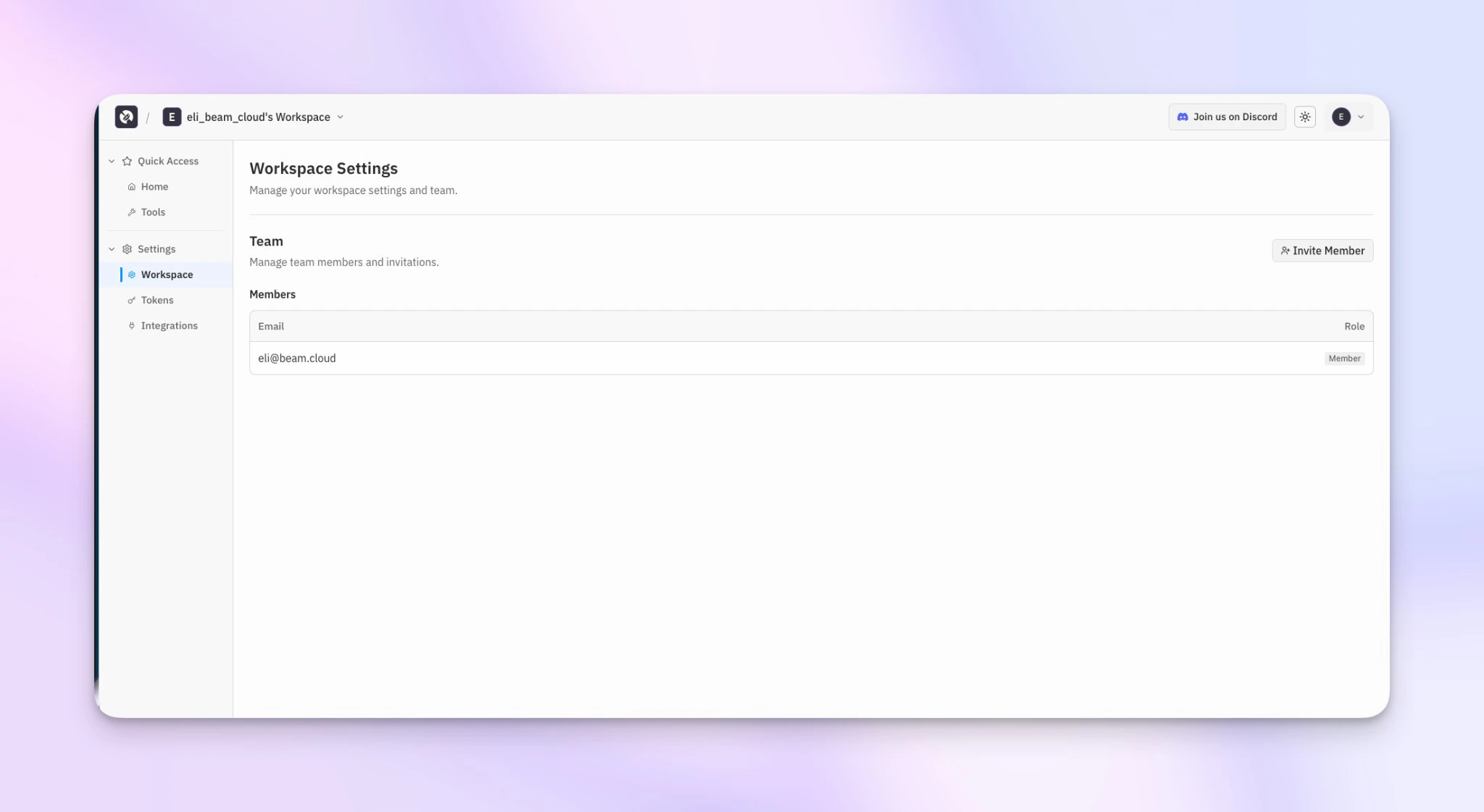 Team members can access the same integrations and source views from their own machines.
## What's happening
When you read a file:
1. The FUSE layer intercepts the read
2. Airstore fetches the data from the cached source view
3. The file contents are returned
Reads are fast because source views are pre-materialized. Claude reads files just like it would with local code.
## Next steps
Understand the architecture.
Full command reference.
Team members can access the same integrations and source views from their own machines.
## What's happening
When you read a file:
1. The FUSE layer intercepts the read
2. Airstore fetches the data from the cached source view
3. The file contents are returned
Reads are fast because source views are pre-materialized. Claude reads files just like it would with local code.
## Next steps
Understand the architecture.
Full command reference.